How to auto-translate WhatsApp messages as they arrive
Written by the team that makes Dotok. Free options come first.
In short
- WhatsApp supports the language — turn on auto-translate under ⋮ → Translate in that chat.
- It doesn’t — use Galaxy AI Chat translation (Samsung) or a translator that floats over the messenger.
- Lots of short, vague messages — a translation that reads the earlier messages gets fewer wrong.
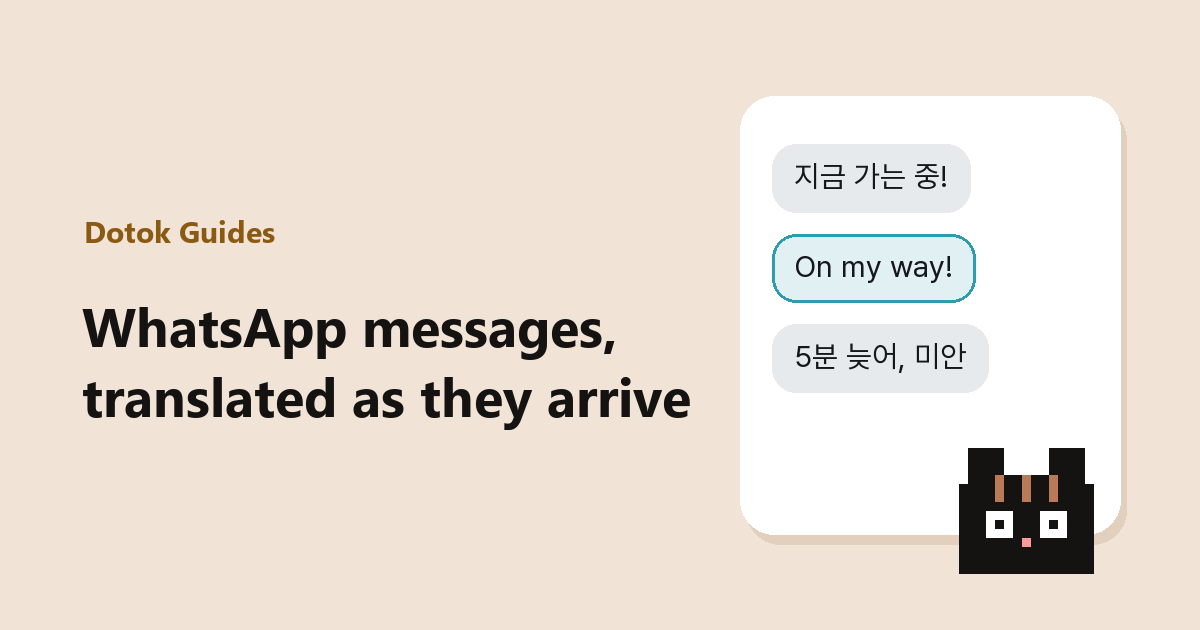
Pressing and holding every message gets old fast. Here are three ways to have them translated as they arrive.
1. Turn on WhatsApp auto-translate (Android)
- Tap ⋮ at the top right of the chat
- Translate → turn on auto-translate
- New messages in that chat are translated as they arrive
Supported languages only, and Android has fewer than iPhone. Menu names vary a little between versions.
2. Galaxy AI Chat translation (Samsung phones)
- Turn on Settings → Galaxy AI → Chat Assist → Chat translation
- In the chat, tap the Galaxy AI icon → Chat translation on the Samsung keyboard and pick their language
Only on Galaxy AI models.
3. An overlay translator — keep the panel open
Dotok, the app we make, translates new messages for as long as its panel is open.
Each automatic translation counts as one use (20 free a day) · can be turned off per messenger, and tapping still translates · Android 8.0+
At a glance
| Method | When it’s automatic | Languages | Needs |
|---|---|---|---|
| WhatsApp auto-translate | Chats where you turned it on | Supported ones only, fewer on Android | Free |
| Galaxy AI Chat translation | While Chat translation is on | Galaxy AI languages | Supported Galaxy models |
| Dotok | While the panel is open | 11 languages, reads earlier messages | Android 8.0+ · 20 free a day |
To reply without switching apps too, see chatting without copy and paste.
FAQ
- Can the other person tell I turned on auto-translate?
- No. Translations show only on your screen.
- The automatic translation looks wrong.
- Check it against the original. In Dotok, tapping the bubble switches between the original and the translation.
Sources
- WhatsApp Blog — Introducing Message Translations
- 9to5Google — WhatsApp auto-translation is exclusive to Android
- Samsung — Using Chat Assist (Writing Assist)
Read next
 How to chat in another language on WhatsApp without copying into a translatorFour ways to read and answer foreign-language WhatsApp messages without copying them into a translator app: WhatsApp’s built-in translation, Gboard, Galaxy AI and an overlay translator.
 WhatsApp translator apps: which one fits your situationWhich app or feature to use for translating WhatsApp chats, by situation. WhatsApp’s built-in translation, Gboard, Google Translate, Galaxy AI and an overlay translator compared in one table.
 Chatting across languages: when the translation is right but the meaning isn’tPhrases that translate correctly but mean something else when you chat with someone abroad. Japanese, Korean and Indonesian examples, and how to translate so less gets lost.